Features · Skysa Notes
Plain Markdown files, with a real editor on top.
Each note is a .md file with front matter for its title, dates and tags. Each notebook is a folder. Pictures sit beside the notes that use them. You get a rich editor that writes that file, and the file itself whenever you want it.
The file is the note
There is no database with an export button. A note is a .md file; its title, created and updated dates and tags are a few lines of YAML front matter at the top; a notebook is a folder; a picture is a file beside the note that shows it. Rename the note and the file is renamed. Move it to another notebook and the file moves, with its pictures.
An editor that respects the file
The rich editor shows formatted text and writes CommonMark with the GitHub extensions: tables, task lists, strikethrough, fenced code. Opening a note never rewrites it. A file written by another app is left exactly as it was until you change something, so a note from Obsidian or iA Writer is not quietly reformatted the first time you look at it.
Anything the rich editor could not show faithfully, footnotes or a block of raw HTML, opens as Markdown with a line saying why, and stays in the file. Press Cmd/Ctrl+E on any note to see the Markdown yourself.
What it does not do
Wiki-style links in double brackets, math and Mermaid diagrams are kept as the text you wrote but are not rendered. There are no plugins. If those are the point of your notes, the app is probably not for you yet; if plain files you can open anywhere are the point, it is.
Bring your files
A folder of Markdown files imports as it is: folders become notebooks, pictures come along, dates are read from the front matter. On Dropbox you can even skip the import and drop the folder into the app’s folder.
What you get
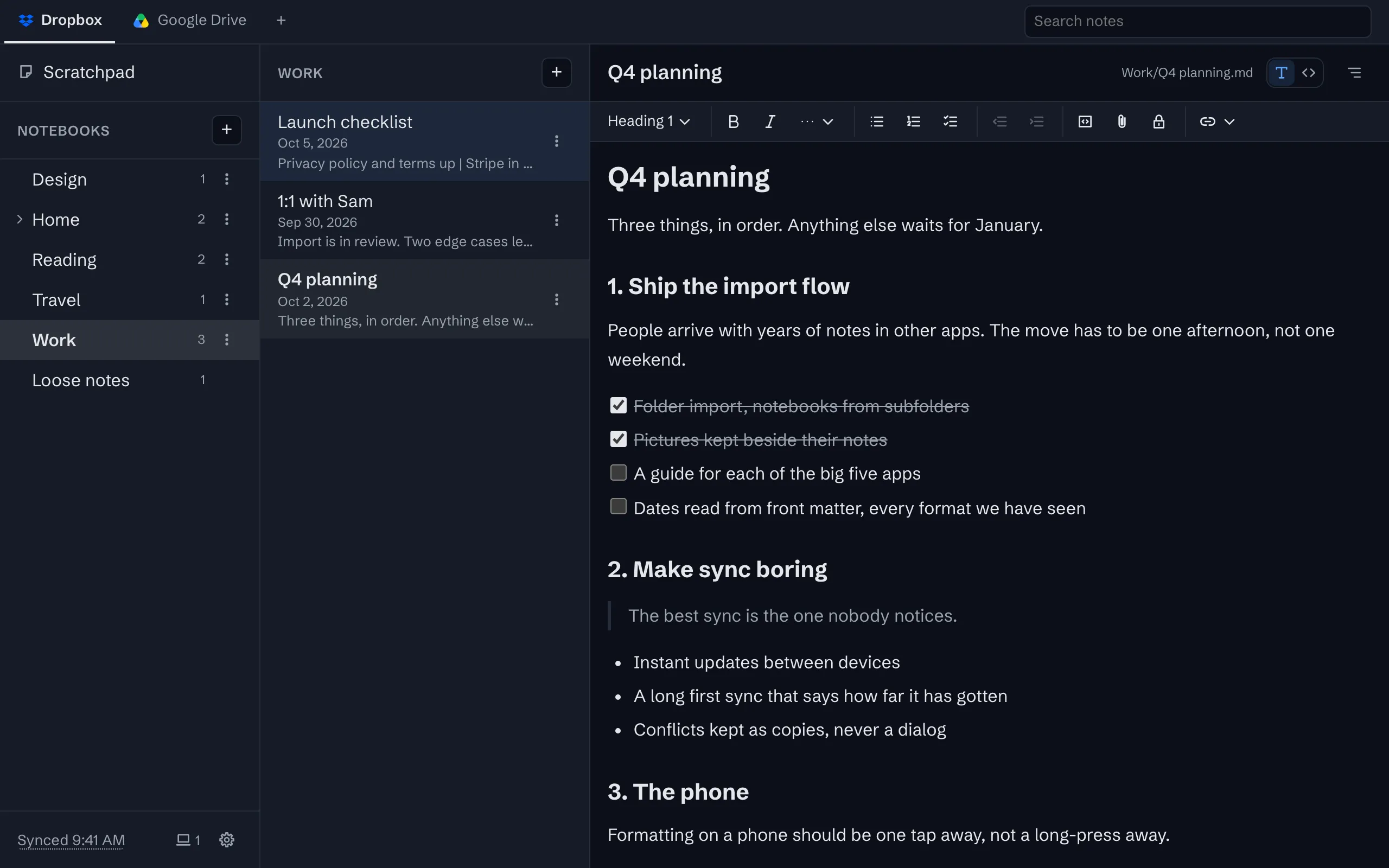
Rich text that is really Markdown
Headings, lists, task lists, quotes, tables and code, in an editor that saves a plain Markdown file.
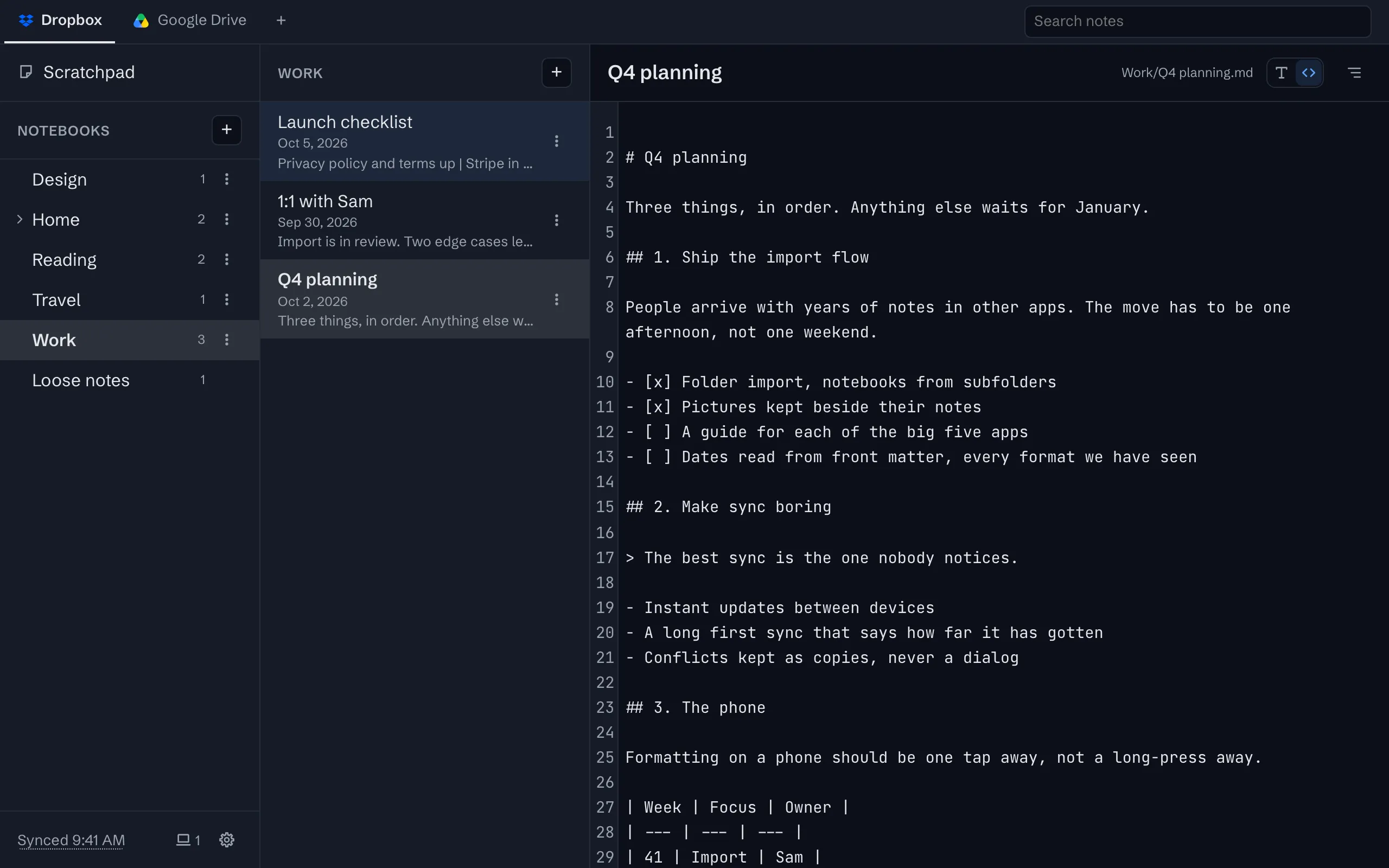
Markdown when you want it
Switch any note to its raw Markdown with Cmd/Ctrl+E, and back. Both edit the same file.
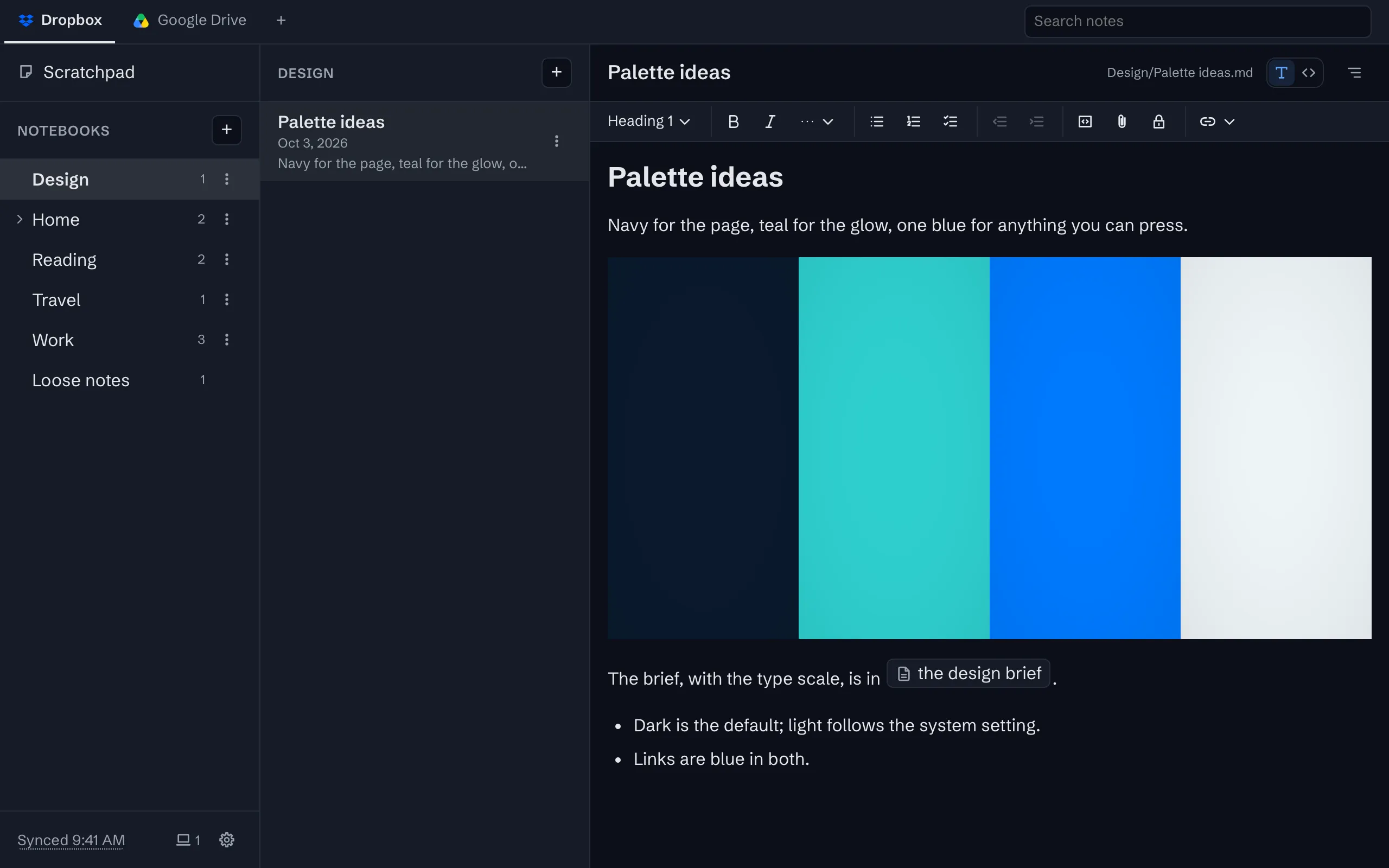
Pictures and files beside notes
Paste, drop or pick a picture or a file. It is kept in the note’s folder, and the note links to it.
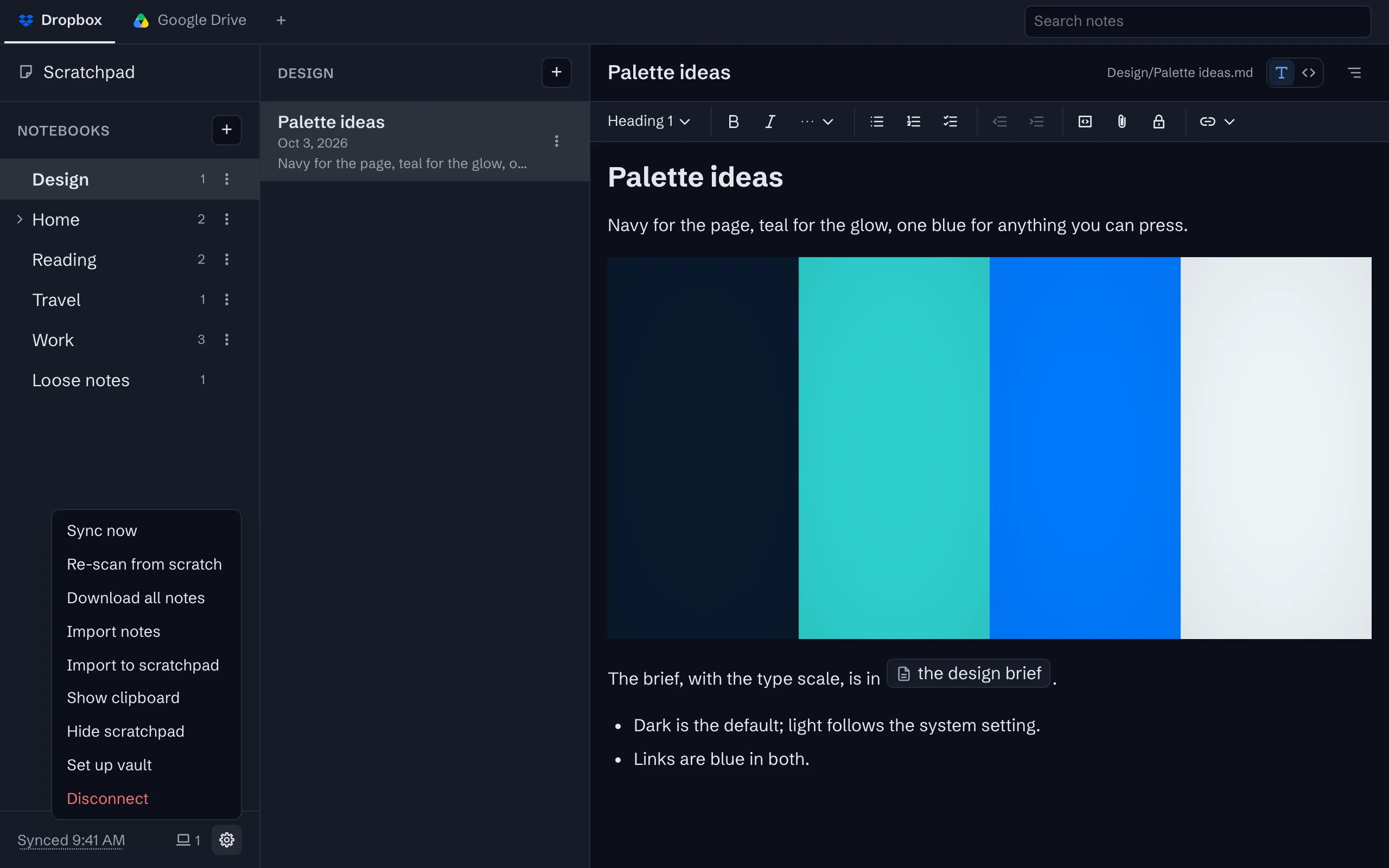
Take everything out, any time
Download every note and its files as a zip, or just open the folder in your storage. There is no export step because there is no lock.


The whole tour has the rest, with screenshots.
Moving your notes here
Our guides get your notes out of the app you have, as Markdown files, with free tools:
- Move an Obsidian vault to another Markdown app
- Export Joplin to plain Markdown files
- Export Bear notes to Markdown files
Try it
The app is free on one device, with no account to create. Sync is $1 a month or $10 a year, after a 30-day trial with no card.