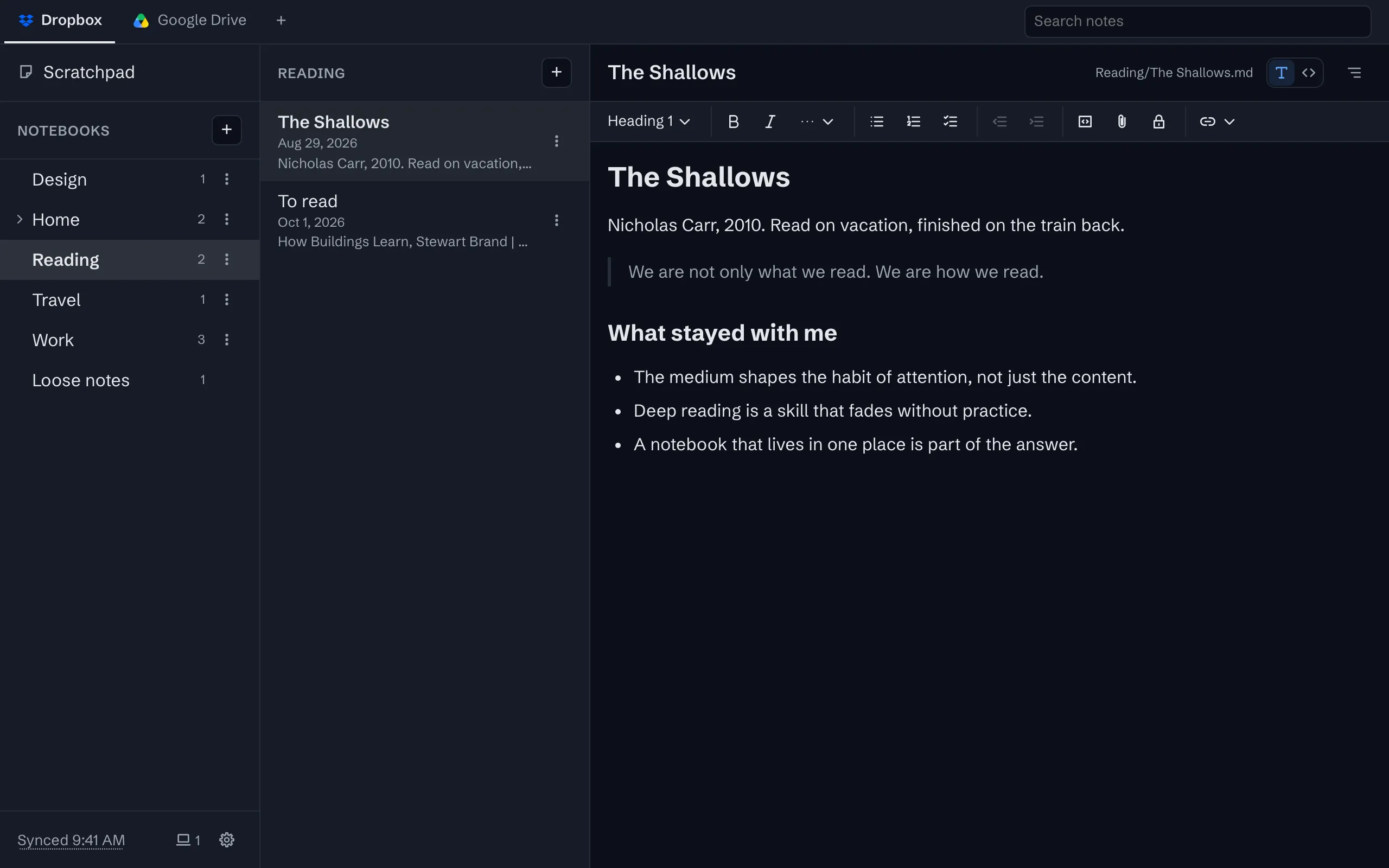
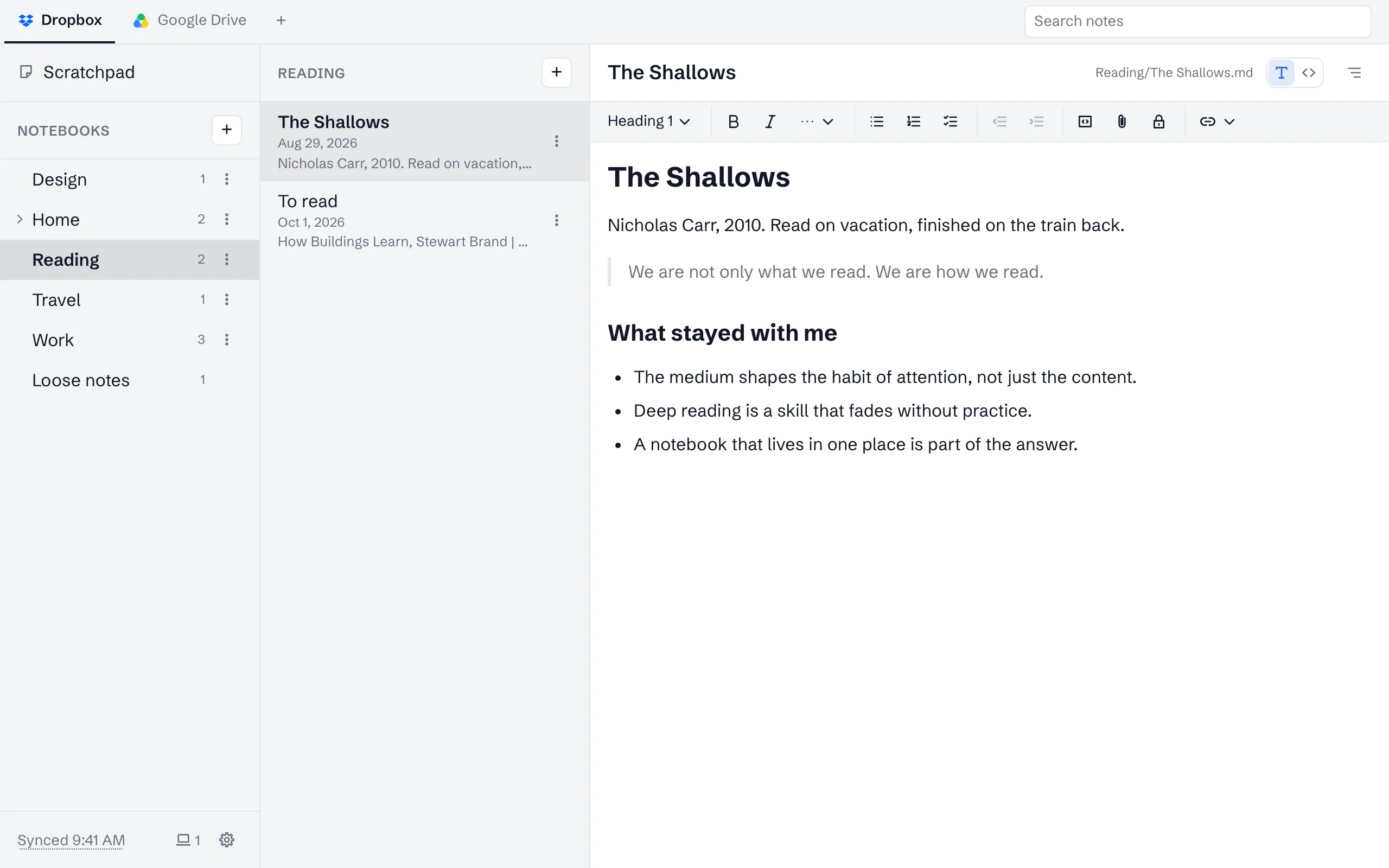
A notes app that runs in the browser and keeps every note as a Markdown file in your own storage. These are its parts, with pictures of the real thing. It is free on one device; syncing them through your own Google Drive or Dropbox is what a subscription buys.
Writing
An editor that shows you formatted text and writes plain Markdown, with the file always one keystroke away.
Rich text that is really Markdown
The editor shows formatted text and saves Markdown. Type # for a heading, - for a list or [ ] for a task, or use the toolbar across the top; select some words and a small toolbar appears over them. Tables, quotes, dividers and fenced code blocks all come back from the file as the Markdown you would have typed.
Opening a note never rewrites it. A file written by another app is left byte for byte as it was until you change something, so nothing is tidied behind your back.
A scratchpad for quick notes
Above your notebooks is the scratchpad: a Take a note… box, and the notes taken there as cards, the pinned ones first. Write a line, a list or a few things to check off, attach a picture or a file, and close it. There is nothing to name and nowhere to file it. Each card shows its note as it is set, pictures and all, and opens over the wall to be read or added to.
Pin a card or give it a color and every device sees it, because both are kept in the note’s own file. When a quick note grows into something more, Move to notebook makes it an ordinary note. Scratch notes are Markdown files in a hidden .scratchpad folder, synced like any other note, and search finds them. Hide scratchpad, in the storage menu, puts it away.
A slash menu for every block
Type / on an empty line and pick what goes there: headings, a bulleted, numbered or task list, a quote, a code block, a table, a divider, an image or a file. Keep typing to narrow the list, and Enter puts it in.
Every command, by name
Press Cmd/Ctrl+K and type: a new note, attach files, switch the editor, pin this note, download everything. The palette lists every command by name, so there is nothing to find in a menu first.
Markdown when you want it
Two buttons above the note switch between rich text and Markdown, per note, and the app remembers which you chose. Both edit the same file.
A note the rich editor could not show faithfully, with footnotes or a block of raw HTML, opens as Markdown with a line saying why, so nothing in it is ever dropped.
Pictures and files beside notes
A picture pasted or dropped into a note shows in place. Any other file, a PDF or a spreadsheet, shows as a chip with its name, which opens or downloads it. Files go beside the note in the same folder and travel with it when it moves, up to 25 MB each.
On a phone, a picture over 8 MiB that the device does not hold waits to be asked for, so scrolling past a photo does not spend your data.
Organizing
Notebooks that are folders, search that asks everywhere, and addresses you can bookmark.
Notebooks that are folders
A notebook is a folder and a note is a file in it. Notebooks open and shut with the chevron or the arrow keys, and show how many notes they hold. Drag a note into another notebook, a notebook into another, or either back to the top. Pin a note to the top of its list from its menu, and a notebook to the top or the bottom of its own.
In your storage it is the same tree of folders and files, so a notebook you make here is a folder you can open there.
Search everything at once
The search field at the top asks every source at once, the notes on this device and every connected account, and shows what matched as you type. Pick a result and it opens where it lives, so you need not remember which account a note is in.
Press the empty field before typing and it lists the notes you opened lately on this device, newest first, from every account, so getting back to one is a click.
Links to notes, and a Back button that works
The address bar names the open note by its notebooks and its name, such as /#/work/q4-planning, and the tab’s title reads Work › Q4 planning. Back and Forward move between the notes and notebooks you opened. A link to a note opens it, and follows it when it is renamed.
The names live after the #, the part of an address a browser never sends to any server.
The vault
Passwords, and the secrets in your notes, encrypted on your device before they are saved anywhere, with a key only you hold.
Secrets inside a note
Insert secret, the lock on the toolbar, puts a secret in a note: a block whose words are encrypted on your device as you type them. Your storage provider, and anyone who can open the folder, sees only scrambled text. Closed, the secret shows its label, or just Secret, and Reveal; revealed, its words open in a panel under it, with Copy.
A secret’s words never reach the note list, the scratchpad’s cards or search, which finds the note by the secret’s label alone. The vault locks when you switch away from the app, or after half a minute untouched, and every open secret closes with it.
A password manager in your own storage
Turn on Passwords in an account’s Vault and a Passwords list appears under the notebooks. Each password has a label left unencrypted, naming the app or service, and a site, a username, a password and notes that are encrypted as you type them. Copy puts the username or the password on the clipboard, Show reveals the password, and Generate makes a new one: 20 characters, or any length from 8 to 64, with or without symbols.
Fill on sites, in the list’s header, sets up a bookmark that fills a password in on a site’s sign-in page. Pressed there, it opens a small window of the app’s own that offers only the passwords saved for that site, and offers to save a password you type there, or to update one that changed, keeping the old one too. Chrome and Edge run it on any site; Firefox, and at times Safari, will not run it on a sign-in page that blocks scripts it did not load itself.
Each password is a file in a hidden folder in your own storage, synced like a note, so it is on every device you connect, and the folder in your Drive or Dropbox is its backup.
A key only you hold
Set up vault, in a connected account’s menu, makes a recovery key and shows it once, as twelve groups and a QR code, to print or write down. Each of your devices is set up with it once, by typing it or by scanning the code with its camera, and then unlocks its own way: a pattern, a PIN, a password, or the device’s fingerprint, face or screen lock where the browser offers it. Ten wrong tries and a device forgets its copy until the key sets it up again.
The key itself is never stored: not in your storage, not on our servers, and not on a device as it is, since each device keeps its copy locked under its own unlock and nothing about that unlock leaves it. So neither we nor your storage provider can open your vault. It also means that if the key is lost, and every device that unlocks the vault is lost or reset, what is in it is gone. Secrets are written in age, an open format with tools of its own, so the key opens them even without this app.
The vault belongs to a connected Google Drive or Dropbox, which keeps its secrets and passwords. Notes kept only on one device, on the free tier, have none.
On every device
A phone, a laptop and a tablet, the same files in your own Google Drive or Dropbox, changes between them within seconds, and one clipboard for all of them.
Made for your phone
On a narrow screen the account, the notebook and the note become a path across the top, and choosing one opens the next, so you go from an account to a note in a few taps. Format shows a formatting bar that stays until you turn it off.
Install it to your home screen from the banner, or from the Share menu in Safari on an iPhone, and it opens like any other app, offline too. On Android and ChromeOS the installed app is a share target: share text, a link or a file to it from any other app and it lands on your clipboard.
A clipboard your devices share
Show clipboard, in a connected account’s storage menu, puts a clipboard above the status line on every device of that account. Paste into it, drop files on it, or share to it from your phone, and it is on your other devices in seconds. Press an item there to copy its text or picture back to the system clipboard, or to save a file.
It keeps the last ten items, as files in a hidden folder in your own storage, so what you copy is as private as your notes. Text, pictures and files up to 25 MB, between any devices with a browser: an Android phone and a Windows laptop, an iPhone and a Mac.
Sync through your own Google Drive or Dropbox
Connect Google Drive or Dropbox and the app makes one folder there. Every device you connect syncs with the same folder, two ways, and so does anything else that reads files: change a note in another editor and the change comes back here.
When two devices change the same note while apart, both versions are kept, the second as a copy named with the time, and nothing is lost. One subscription covers as many storage accounts as you like, each shown as its own tab with the provider’s logo.
Every device on the account, by name
Beside the status line of a connected account is a count of the other devices signed in on it, and pressing it lists them by what they are, as their browser said when they connected: Safari on an iPhone, Chrome on a laptop. One more than you own is what a stolen code would look like, which is why the count is always in view.
Remove a device and it is signed out for good: it stops syncing then and there, and can only come back by connecting again. There is no account page for any of this, because there is no account; the list belongs to the storage account it is about.
Changes arrive in seconds
A device that has just synced says so, and the account’s other devices fetch the change within a second or two, or a few on Google Drive, which takes a moment to report one. Nothing but “something changed” passes through; the notes themselves still go straight to your storage. Without it, an open device checks once a minute.
Offline first
Notes are kept on the device and saved as you type. Offline, everything works. Online, the device syncs in the background: on opening the app, on coming back to it, and every minute while it is in front of you. A long first sync shows how far it has gotten, and picks up where it left off if the app is closed.
Keeping
Bring in what you have, take out everything at any time, and run the whole thing yourself if you would rather.
Bring in what you already have
Import notes, in the storage menu, takes a folder of Markdown files, or notes and zips you pick. Subfolders become notebooks, pictures and files beside the notes come with them, and each note’s dates are read from its front matter. Nothing already there is changed or replaced; a name that is taken gets a number.
The guides show how to get a folder like that out of Evernote, Notion, Apple Notes, OneNote and others.
Take everything out, any time
Download all notes, in the storage menu and the command palette, saves a zip of every note with the files beside them, from any device, on the free tier too. With storage connected you hardly need it: the folder in your Drive or Dropbox is already the export. Disconnect an account and its notes stay in the storage; stop paying and they stay where they are.
Light and dark, as your system is
The app follows your device’s light or dark setting and changes with it, as this site does. The picture below follows it too; flip the switch to see the other one.
Open source, and yours to run
The app and its server are open source under the AGPL-3.0, so you can read what the code does with your notes rather than take our word for it. The self-hosting guide walks through running every part of it on your own Cloudflare account, for free.